Once QMovement is set up, setting up animations to work with QSprite is the clear next step. There is a lot of extra work up front for using QSprite, but the payoff is worth the extra effort.
To start with, you have to define your sprite sheet layouts. QSprite can use sprite sheets of any size, but characters are still limited to a single sprite sheet being available to a character at a time. You could use the giant mastersheets and change the character sheet out but that would result in flicker while the large spritesheets load when being swapped. Instead, I prefer to create my own spritesheets that only include the animations that I need to use in my game.
You can create multiple sprite sheet layouts, so I use two in my project:
Basic – Has just the Idle, Walk, and a Behavior animation in it. This can be used for enemies and basic NPCs that just need facing and movement.
Hero – This is a full animation sheet with varied set of animations used only for main characters. It is larger so slow to load at startup, but because it has all of my animations, there is no sheet swapping and no flicker.
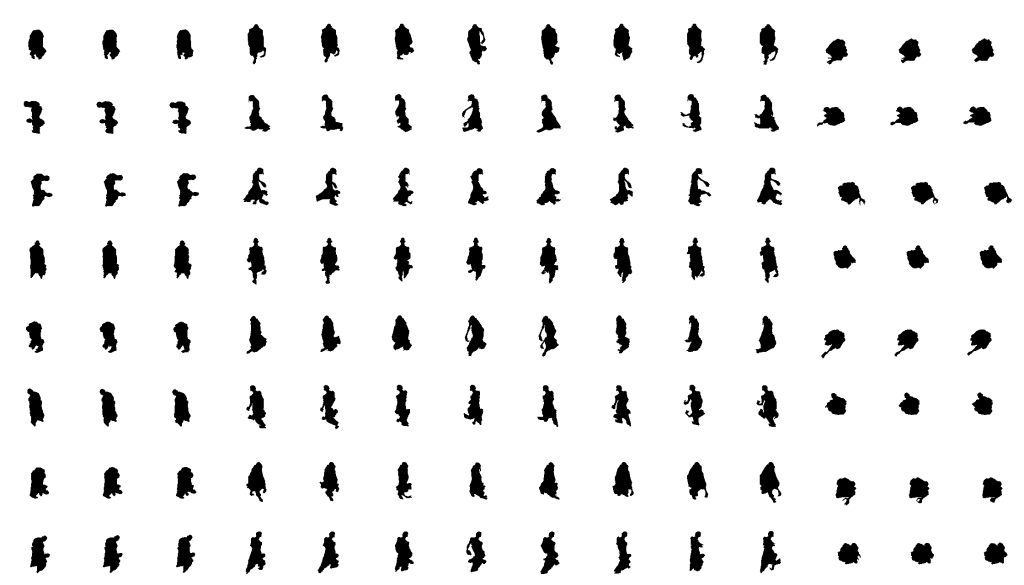

I’ll do a full video later for QSprite setup, but for now, here is a sample of my QSprite Configuration to use as an example.
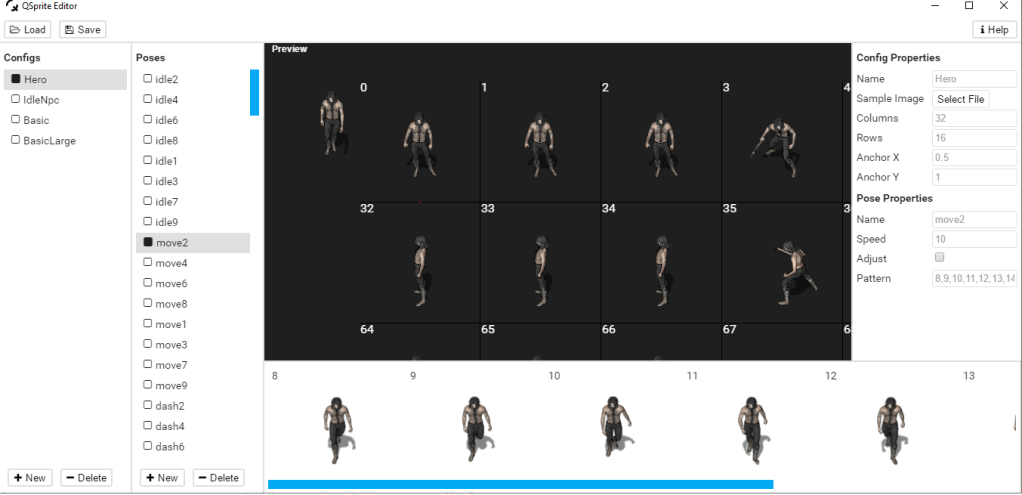
QSprite uses the following animations automatically:
idle
move
dash
All other animations can be called by Plugin Commands. Some examples of animations that I use in my Hero Spritesheet are kneel, climb, jump, kick, drink, and interact. When setting up QSprite, I also set up some to play backwards: unkneel, unjump, unkick. These play the animations in reverse to use as an end animation, such as standing back up with unkneel instead of just flickering from kneel back to standing.
Example Events Using Animations
Kneels down, changes the self switch to remove the graphic of the item being picked up (and prevent picking it up again), calls the common event to get the item, then plays the unkneel animation to stand back up, and finally clears the animation.

Note that the “lock pause wait” parameters for the play animation keep the character kneeling and prevent the player from moving until the event is finished. The clear command releases the character to normal animations and play.
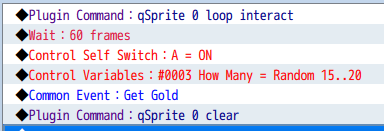
This example plays the looping interact animation while the gold is being picked up, then after the frame wait is completed, turns the animation back off.
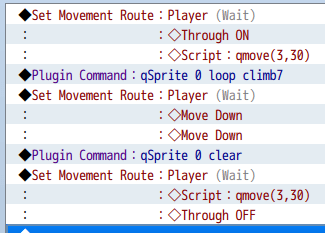
This last example is used for climbing. It starts by moving the player closer to the edge of the wall with a QMovement script command before starting the looping climb animation. In this example, the direction of the animation is specified since the player needs to be facing up while moving down to climb down a ladder. Once the player reaches the bottom, the animation is cleared and the player is moved away from the ladder event with the script call again.
 Zyph's Game Design
Am already done doing the qSprite Editor thing.. but after that i don;t know what to do next T_T it wont animate .. it still plays the default player sprite 😦
LikeLike
I’m not sure if you looked at the next “QSprite Editor” Post, but at the bottom, it goes has screenshots of the rest of the setup.
Make sure your sprite sheet filename matches the configurations you built. So if you left the default %{config}- in the plugin parameters, then your filename would be %{config}-{name}.png – Replace {config} with the config name used in the QSprite Editor, Replace {name} with a name for the character sheet.
– For Character Zyph using Configuration Hero: %Hero-Zyph.png
– For NPC Merchant1 using Configuration Basic: %Basic-Merchant1.png
If you changed the Parameters for the plugin (such as my using Q_ instead of %) then you will have to adjust your filenames accordingly. If you do make changes, the {config} must be left in the parameter since that identifies which configuration from the editor to use.
For the same above examples, using my parameter setting of Q_{config}- my sprite sheet filenames would be:
– Q_Hero-Zyph.png
– Q_Basic-Merchant1.png
Then attach the sprite sheet to your Actor in the database or to an Event, and the idle, move, and dash animations should be used automatically – as long as they are named correctly (they are case sensitive, lowercase).
LikeLike